13 Sep Text Alert on After-Hours Warehouse Badge Use (2026)
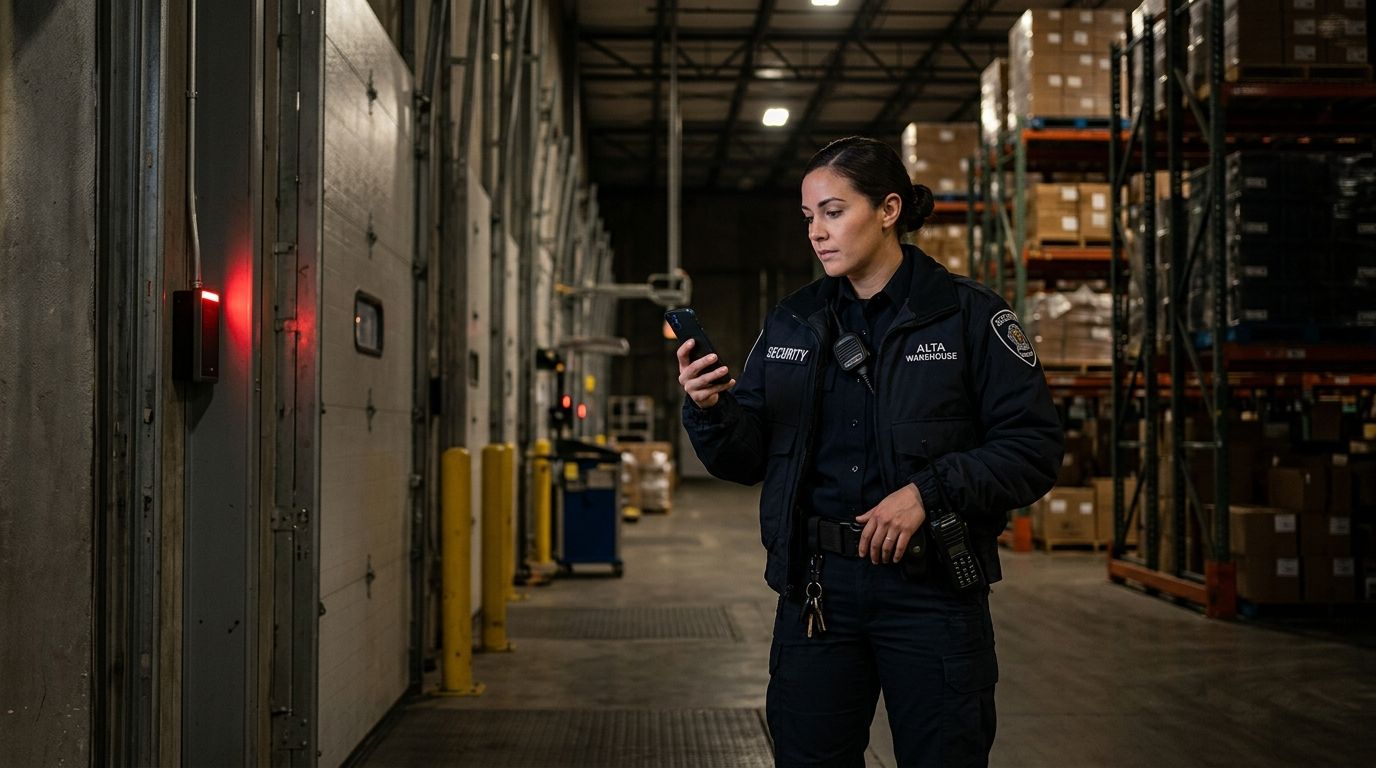
Manually reviewing badge logs every Monday morning to see who walked into the warehouse at 2 a.m. on Saturday doesn't catch anything until the damage is already done. Set up an automated text alert on after-hours badge use so a manager gets a message the moment a credential opens a door outside scheduled hours, not three days later during a log review.
- A text alert on after-hours warehouse badge use fires the moment a credential opens a door outside its scheduled window, not after a log review.
- Set this up through your access control system’s rules engine tied to a scheduled door group, no extra hardware needed in 2026.
- The most common setup mistake is leaving holiday and overtime schedules out of the after-hours definition, which floods managers with false alerts.
- DBSI configures this alongside forced-door and photo-logging automations on the same access control platform.
- A second variant lets you require a second badge tap within 60 seconds before an alert fires, cutting noise from legitimate late shifts.
Why this matters
Warehouses run credentials 24 hours a day across shifts, contractors, drivers, and cleaning crews. A badge that works fine at 8 a.m. is a different risk entirely at 1 a.m. on a Sunday.
Most access control platforms already log every badge swipe with a timestamp. The gap isn't data, it's notification. Nobody is watching the log at 1 a.m., which is exactly when an after-hours alert needs to exist. A text message closes that gap in seconds instead of days, and it costs nothing extra if the access control system already supports scheduled rules and SMS or email-to-SMS relay.
Before you start
- Admin access to the access control panel or cloud dashboard — you need permission to create schedules and notification rules, not just view logs.
- A defined after-hours schedule per door or door group — warehouses often run three shifts, so "after-hours" for a loading dock may differ from "after-hours" for an office entrance in the same building.
- The gotcha: if your after-hours schedule doesn't account for overtime shifts, holiday coverage, or a Saturday cleaning crew, the alert rule will fire constantly during legitimate work and get ignored within a week. Build the exception list into the schedule before you turn on notifications, not after the first false alarm.
Set up your badge event trigger
- Open the access control platform's admin dashboard and navigate to Schedules (some platforms label this Time Zones or Access Levels).
- Create a schedule named something like Warehouse After-Hours and set the time range to cover all hours outside your normal operating window — for most warehouses that's before 6 a.m. and after 8 p.m. on weekdays, plus all day Saturday and Sunday unless a shift is scheduled.
- Assign this schedule to the specific doors you want monitored — main entrance, loading dock, and any server room or cage door inside the warehouse.
- Go to Rules or Triggers and select Access granted during [Warehouse After-Hours] as the trigger condition.
Expected result: the platform shows the rule as active and lists every door assigned to it. Test it by badging in during a window covered by the schedule — the event should log with a timestamp inside your defined after-hours range.
Configure the text alert action
- In the same rule, set the action to Send notification and choose SMS or Text message as the delivery method.
- Enter the phone number for the manager, security lead, or on-call staff member who should receive the alert. Most platforms allow 2-3 recipients per rule.
- Customize the message template to include the cardholder name, door name, and timestamp fields — these are usually inserted as variables in brackets, like {cardholder} or {door_name}.
- Save the rule and set it to Active.
Expected result: a test badge swipe during the after-hours window generates a text message within 60 seconds that names the person, the door, and the time. If the message arrives without a name, the credential wasn't properly assigned to that cardholder in the system, which is a separate fix in the credential management section.
Set the after-hours definition per door group
A single warehouse building often needs more than one schedule. A loading dock with an active overnight shift needs a narrower after-hours window than an executive office entrance that's dark by 6 p.m.
- Duplicate the Warehouse After-Hours schedule for each door group with different normal hours.
- Rename each copy clearly — Dock After-Hours, Office After-Hours — so the alert text tells the recipient which zone triggered, not just which door.
- Assign the correct schedule to each door group and repeat the trigger setup from the previous section for each.
Expected result: badging into the dock during a scheduled 3rd shift produces no alert, while the same badge on the office entrance at the same hour does, because the two door groups run on separate schedules.
Want a lower-noise variant? Set up an automated alert for forced-door events using the same rules engine — instead of triggering on a valid badge outside hours, this fires when a door is physically forced or held open past a set number of seconds. Running both rules on the same warehouse gives you coverage for a stolen credential and coverage for someone skipping the badge reader entirely.
“If your after-hours schedule doesn’t account for overtime shifts, the alert rule fires constantly and gets ignored within a week.”
Troubleshooting
- No text arrives after a valid after-hours swipe. Check that the phone number is entered in the correct format for your platform (some require country code, e.g. +1 before the area code) and that the carrier gateway isn't blocking the platform's sending number.
- Alerts fire during legitimate scheduled shifts. The schedule assigned to that door doesn't match actual working hours — update the schedule rather than disabling the rule.
- Alert text is missing the cardholder's name. The badge was issued as a generic credential instead of assigned to a named employee profile. Reassign the credential in the cardholder database.
- Duplicate texts for a single swipe. Two rules are both matching the same event, usually an old test rule left active alongside the production rule. Disable or delete the duplicate.
- Delayed alerts (over 5 minutes). This usually points to a network issue between the door controller and the cloud platform, not the notification rule itself — check controller connectivity first.
Customize your workflow
Once the after-hours text alert is running, most warehouses layer on two more automations without adding hardware: a photo capture tied to every grant event, and a second-tap confirmation before an alert fires so a single legitimate late-shift badge doesn't trip a manager's phone every night.
Log a timestamped photo automatically every time access control grants entry so an after-hours alert arrives with a visual record attached, not just a name and a time. That pairing turns a text alert into something a manager can act on immediately instead of investigating after the fact.
If your warehouse runs on a cloud-managed platform rather than an on-premise panel, the rule logic above still applies but the interface labels differ slightly — see how cloud-based access control systems handle scheduled rules before you build the schedule.
Get your warehouse alerts configured
DBSI sets up after-hours badge alerts on your existing access control system.
FAQ
How do I set up a text alert on after-hours warehouse badge use?
Create an after-hours schedule in your access control platform’s Schedules or Time Zones section, assign it to the doors you want monitored, then build a rule that triggers an SMS notification whenever a badge grants entry within that schedule. Most platforms process this in 2026 without added hardware.
Does this require new hardware at the warehouse?
No, if your access control system already supports scheduled rules and SMS notifications, the alert is a configuration change, not an install. Older on-premise panels without a rules engine may need a controller upgrade first.
Can I get alerts for specific doors only, like the loading dock?
Yes, assign a separate after-hours schedule to each door group so a dock running an overnight shift and an office entrance with no night activity trigger on different windows.
What’s the difference between an after-hours badge alert and a forced-door alert?
An after-hours badge alert fires when a valid credential opens a door outside scheduled hours. A forced-door alert fires when a door opens without a valid badge at all, which usually means the door was pried, propped, or the hardware failed.
How many people can receive the text alert?
Most access control platforms allow 2 to 3 recipients per rule, so a manager and an on-call security contact can both get the same message at the same time.
Why am I getting alerts during a scheduled overnight shift?
The after-hours schedule attached to that door doesn’t reflect actual working hours. Update the schedule to exclude the shift window rather than turning off the alert entirely.
Can the alert include a photo of who badged in?
Yes, pairing the text alert rule with a photo-capture rule on the same grant event sends a timestamped image alongside the name and door, which gives the recipient something to verify immediately.
Is this the same as a burglar alarm system?
No, an after-hours badge alert works within the access control system on valid credential use. An alarm system typically monitors for forced entry, motion, or door-held-open conditions and can run alongside access control as a separate layer.
One last thing
The rule that actually reduces alert fatigue isn't the text message itself, it's the schedule underneath it. Warehouses that build overtime and holiday exceptions into the after-hours schedule from day one get real signal from every alert. Warehouses that skip that step end up muting the notifications within the first two weeks of 2026, which defeats the entire point of setting this up.
Related guides
- Access control systems for warehouses and distribution centers
- How to choose an access control system for your business
- Best network switches for warehouse and distribution networks
- Mobile credential access control for office buildings
Sorry, the comment form is closed at this time.